Wi-Fi Connected but Websites Would Not Load
Support Scenario
Windows 11 Networking Troubleshooting Lab
This case documents a Level 1 troubleshooting workflow for a Windows 11 laptop that appeared connected to Wi Fi but could not load websites.
The focus was structured diagnosis.
Windows 11TCP IPDHCPPingDNSnslookup
Reported issue
Lachlan Cooper, a fictional user, reported that his Windows 11 laptop showed Wi Fi as connected but websites were not loading.
The simulated issue appeared to affect only his device while other users had working internet access.
Environment
- Windows 11 laptop
- Wi Fi connection
- DHCP addressing
- Level 1 IT support lab
Troubleshooting approach
I worked from the local device outward.
I checked the IP configuration first, then the default gateway, external connectivity, DNS resolution and finally browser access.
Troubleshooting
Review IP Configuration
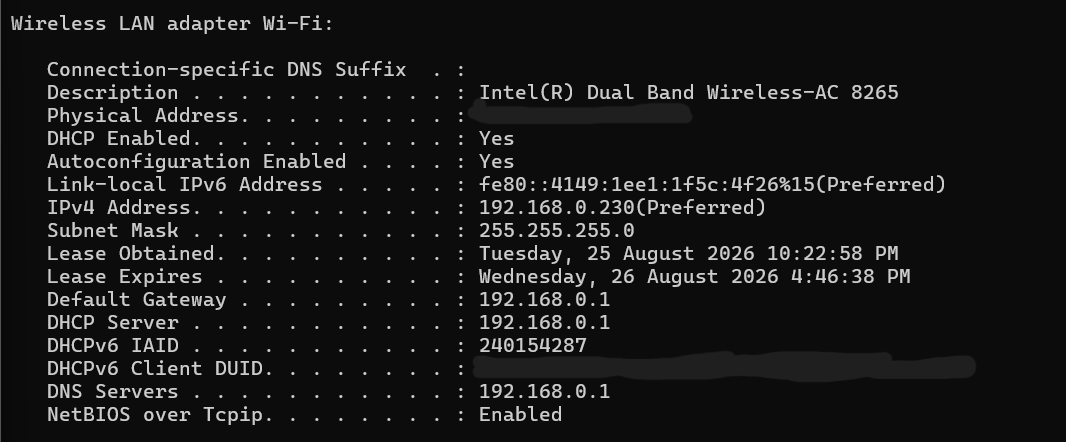
I ran ipconfig /all and reviewed the active Wi Fi adapter.
Result
The laptop had a valid basic network configuration.
Test the Default Gateway
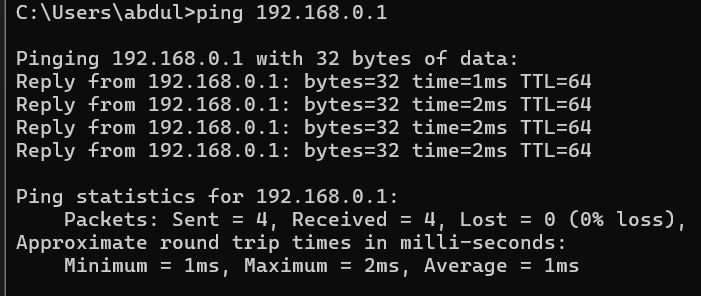
I pinged the configured default gateway at 192.168.0.1.
This tested whether the laptop could communicate with the local router.
Result
Local connectivity between the laptop and the default gateway was working.
Test External Connectivity
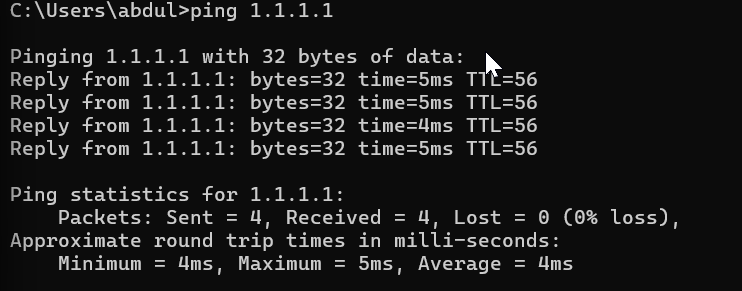
I pinged 1.1.1.1 to test internet connectivity using an IP address.
This test avoided relying on DNS.
Result
The laptop could reach an external internet destination at the network layer.
Test DNS Resolution
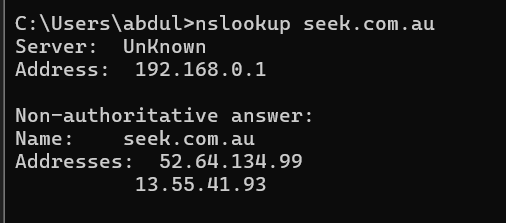
I ran nslookup seek.com.au.
The purpose was to determine whether DNS could translate the hostname into IP addresses.
Result
DNS name resolution was functioning correctly.
Verify Browser Connectivity
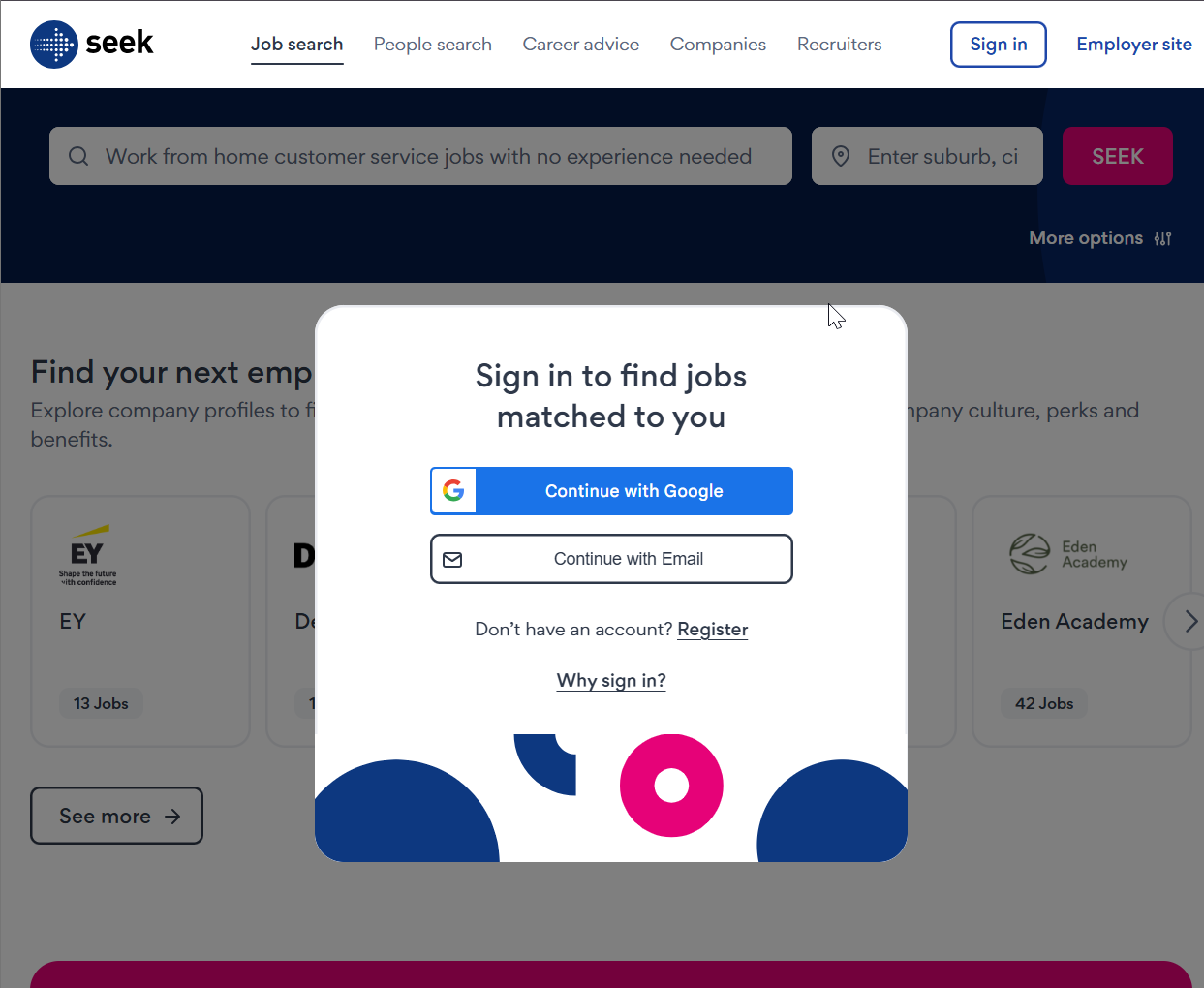
I opened SEEK in a web browser to test the final application layer.
Result
End to end connectivity was working at the time of testing.
Finding
No active network fault was identified
The laptop had valid IP configuration.
It could communicate with the default gateway.
It could reach an external IP address.
DNS successfully resolved the test hostname.
The website also loaded successfully in the browser.
Resolution and Next Step
Because the lab device was healthy, I did not manufacture a fault or restart the computer unnecessarily.
If the user still reported the problem
- Test another website
- Test another browser
- Review browser extensions
- Review proxy settings
- Review VPN configuration
- Clear appropriate browser cache
- Check whether the issue affects only one website
Skills Demonstrated
Windows 11 TroubleshootingTCP IPDHCPDefault GatewayPingDNSnslookupStructured Troubleshooting
Lab Disclosure
This case was completed in a controlled hands on IT support lab using a fictional support scenario.
The screenshots show actual commands and results captured from my lab device.
This was not production administration.