Microsoft Intune Device Deployment + Compliance Case Study
I built this lab to practise the device side of Level 1 IT support using Microsoft Intune and a Windows 11 virtual machine.
I enrolled the Windows device into my Yarra River Services test tenant, confirmed Intune management, synced the endpoint, assigned a compliance policy and verified the final compliance result.
I also created an asset register and a device deployment and handover checklist so the exercise covered both technical administration and support documentation.
Support Scenario
Request
Prepare a Windows 11 device for Liam Carter and bring the endpoint under Microsoft Intune management.
The device should appear in the organisation inventory, receive an assigned compliance policy, successfully sync and return a verified compliance result.
The endpoint also needs to be documented in the asset register and device handover process.
Windows Device Enrollment
Connect the work account
I used a Windows 11 virtual machine as the endpoint for this lab.
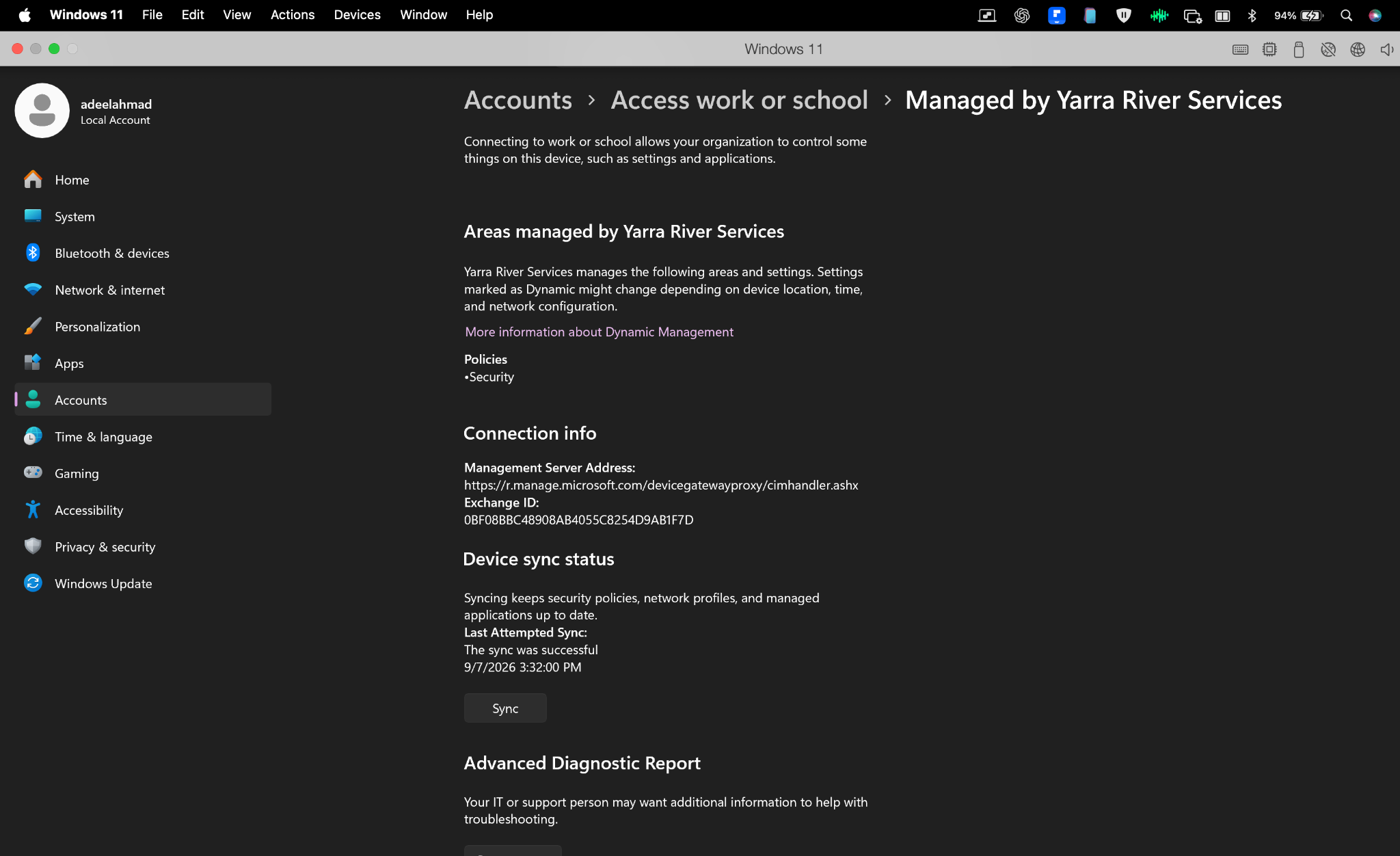
Inside Windows I connected Liam Carter’s Microsoft 365 work account through Access work or school.
Windows then showed that the device was managed by Yarra River Services.
Result
The endpoint had an active management relationship with my Microsoft Intune test tenant.
The device management page also confirmed a successful sync.
Confirm the device in Intune
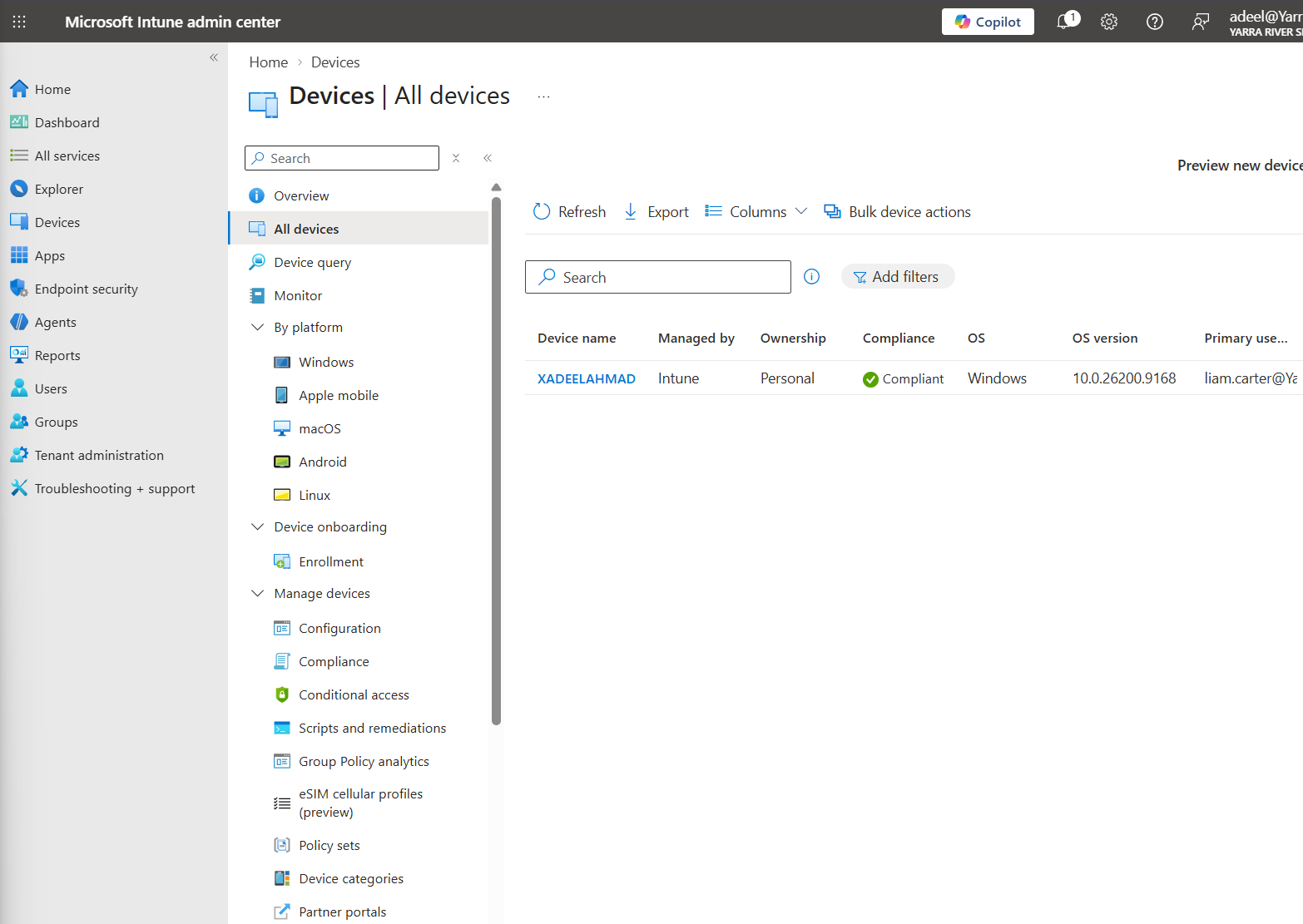
I opened Microsoft Intune Admin Center and checked the device inventory.
The Windows endpoint appeared under All devices.
Intune showed the endpoint as managed by Intune with Liam Carter as the primary user.
Review the device record
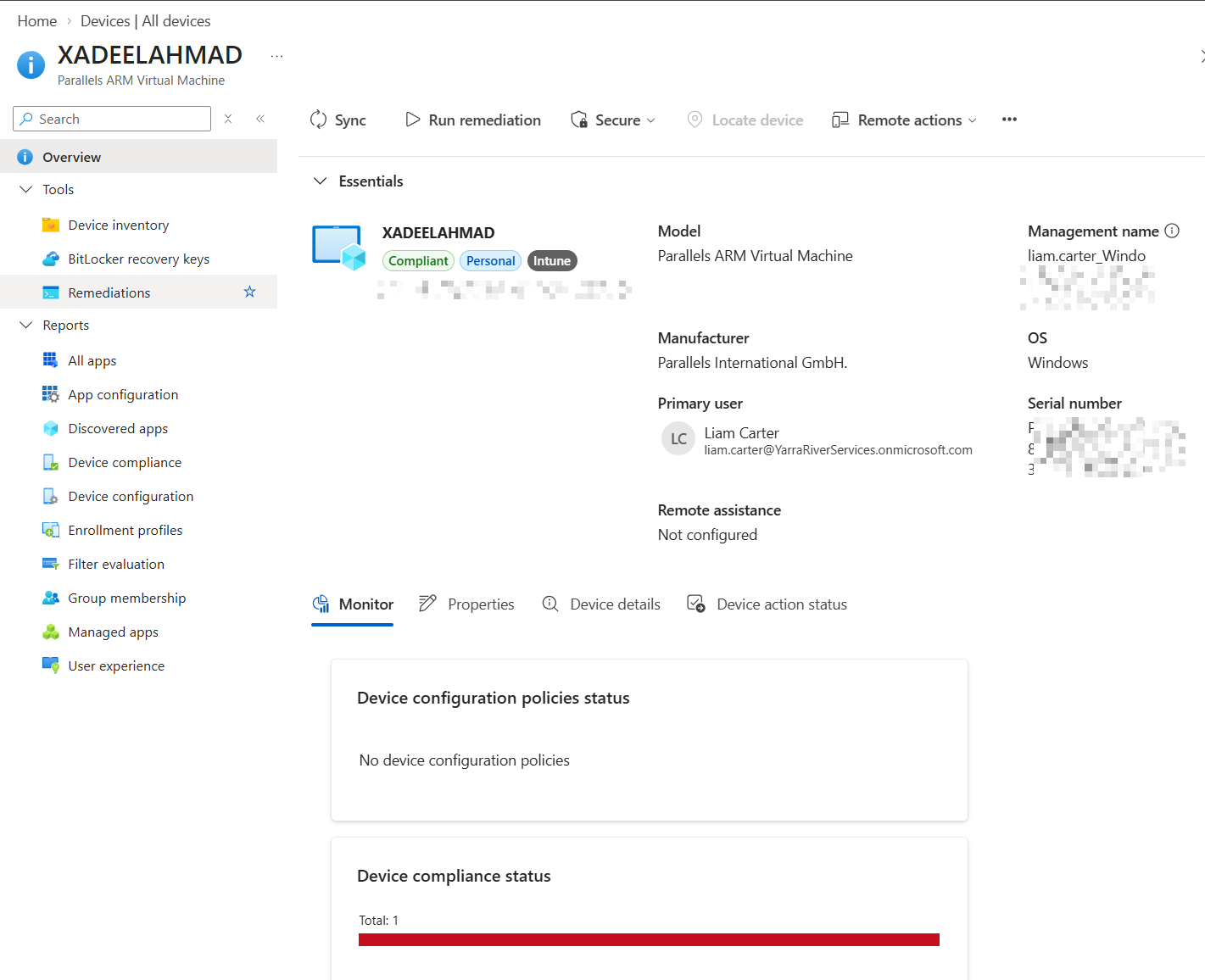
I opened the individual endpoint record to review information available to the support technician.
The record showed Liam Carter as the primary user, Windows as the operating system and Intune as the management platform.
Support takeaway
The Intune device record gives support staff useful endpoint information before they even contact the user.
This can help with ownership checks, operating system information, compliance investigation and endpoint troubleshooting.
Compliance Policy
Create the compliance policy
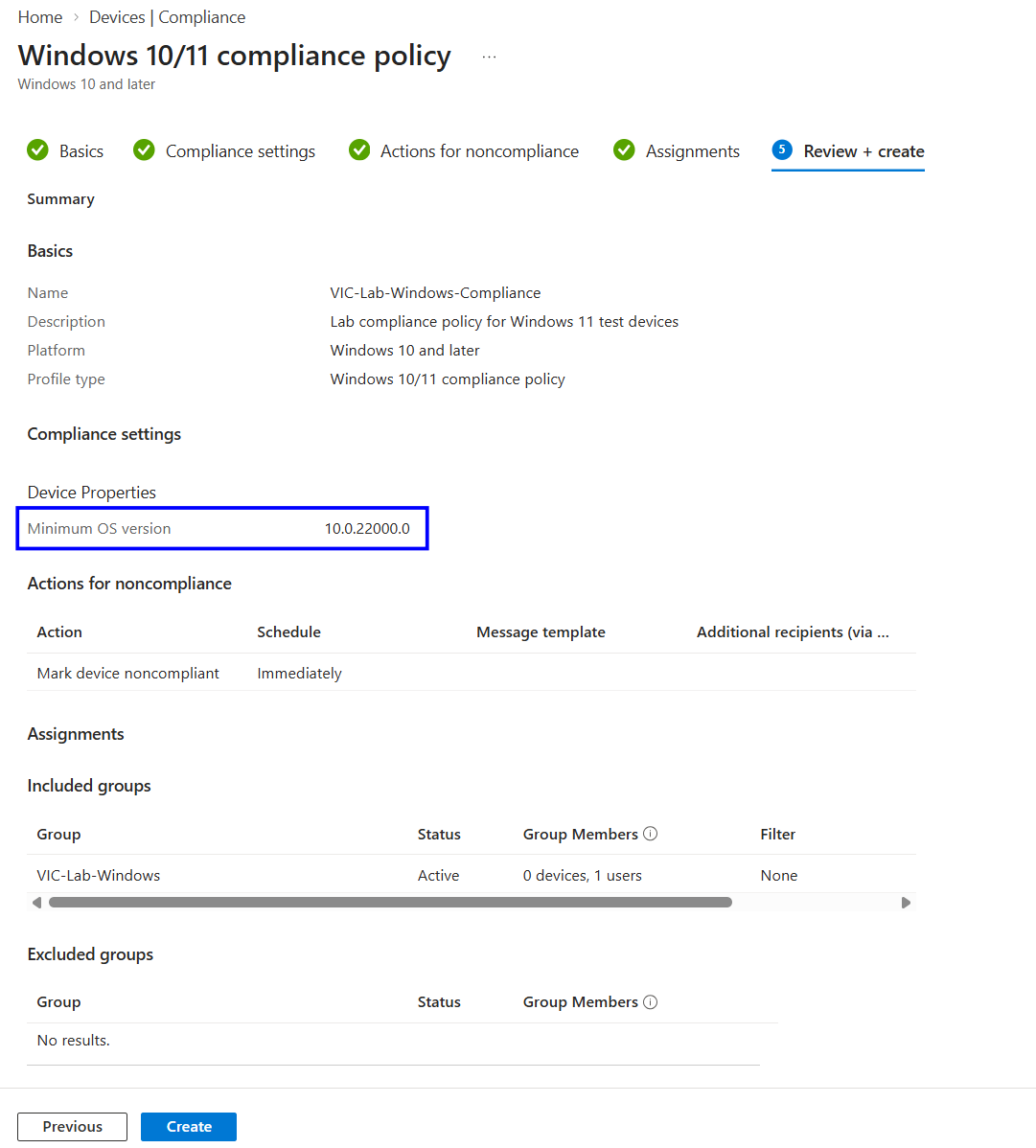
I created a Windows compliance policy called VIC Lab Windows Compliance.
For this controlled exercise I configured a minimum Windows operating system version of 10.0.22000.0.
The policy was assigned only to my VIC Lab Windows test group.
I deliberately kept the test scope limited instead of applying the configuration across the tenant.
Sync and verify compliance
After creating the policy I synced the Windows endpoint so it could receive the latest management configuration.
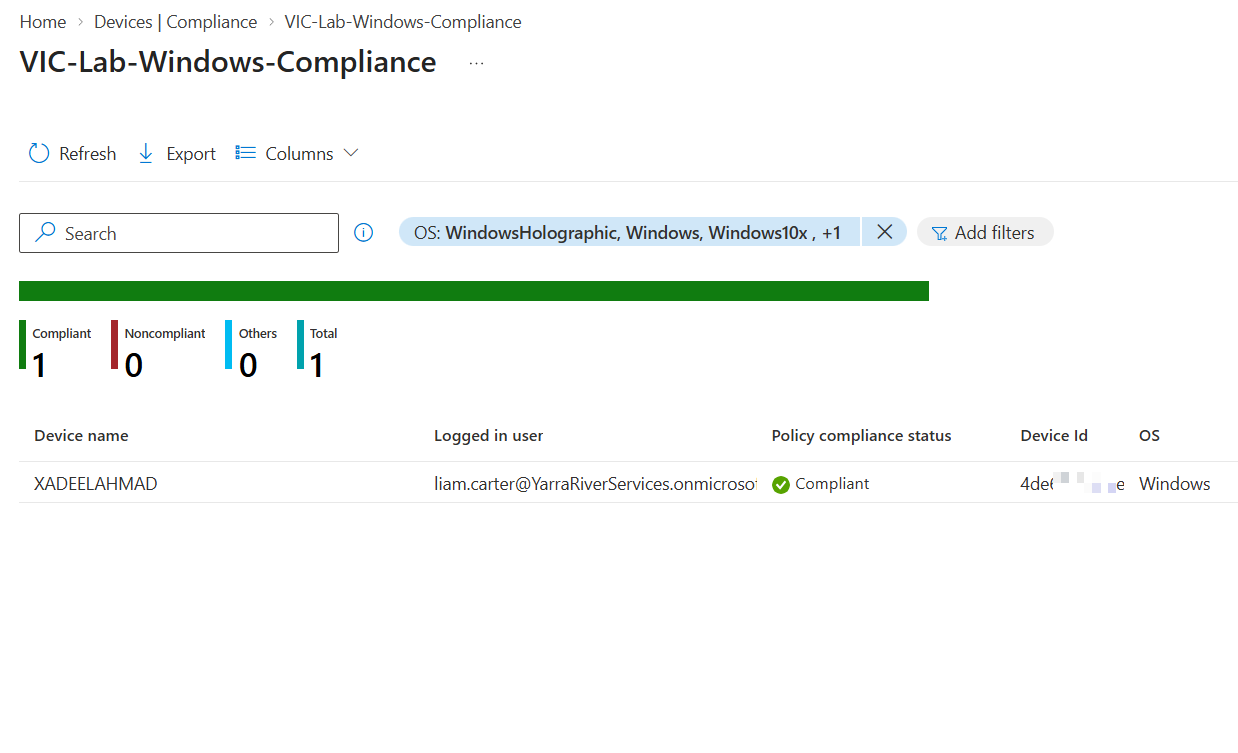
I then checked the policy results in Microsoft Intune.
Result
One Windows endpoint was evaluated.
One endpoint returned Compliant.
Zero endpoints returned Noncompliant.
This confirmed that the endpoint was enrolled, communicating with Intune and successfully evaluated by the assigned policy.
Asset Register
Document the endpoint
Endpoint management also requires accurate asset records.
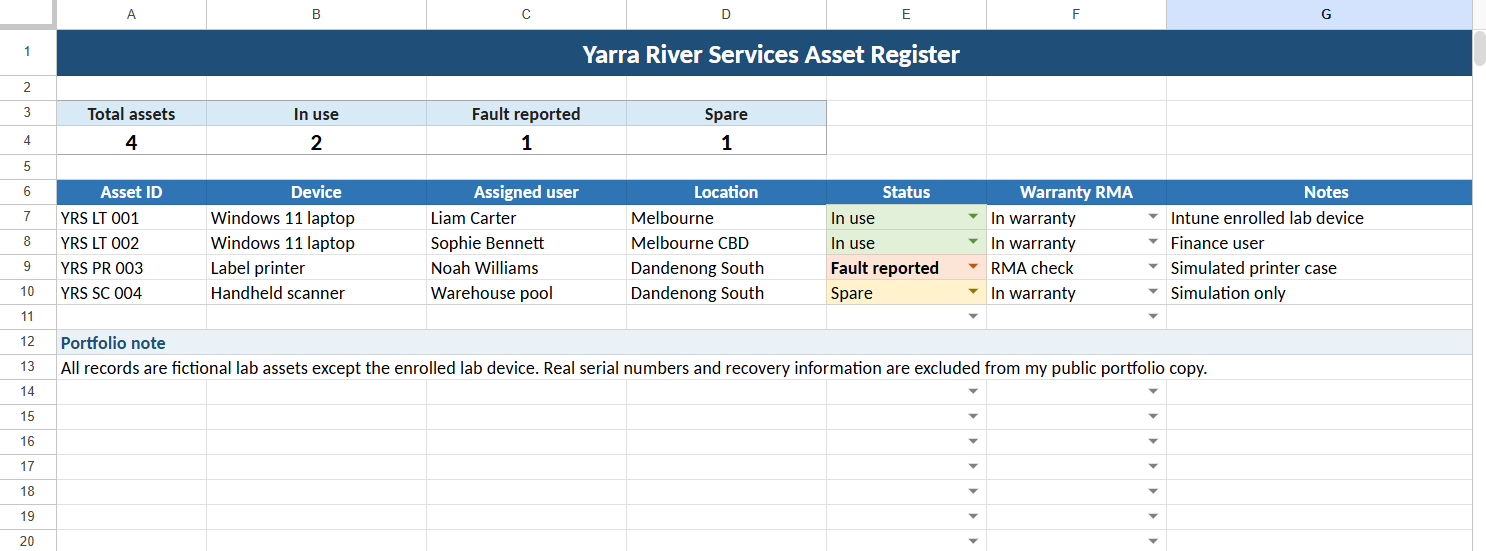
I created a Yarra River Services asset register containing fictional support assets together with the Windows lab endpoint.
The register records asset ID, device type, assigned user, location, status, warranty information and support notes.
Why this matters
A support team needs to know what equipment exists, who has it, where it is located and its current operational state.
The technical device record and asset record should support each other.
Device Deployment and Handover
Complete the handover checklist
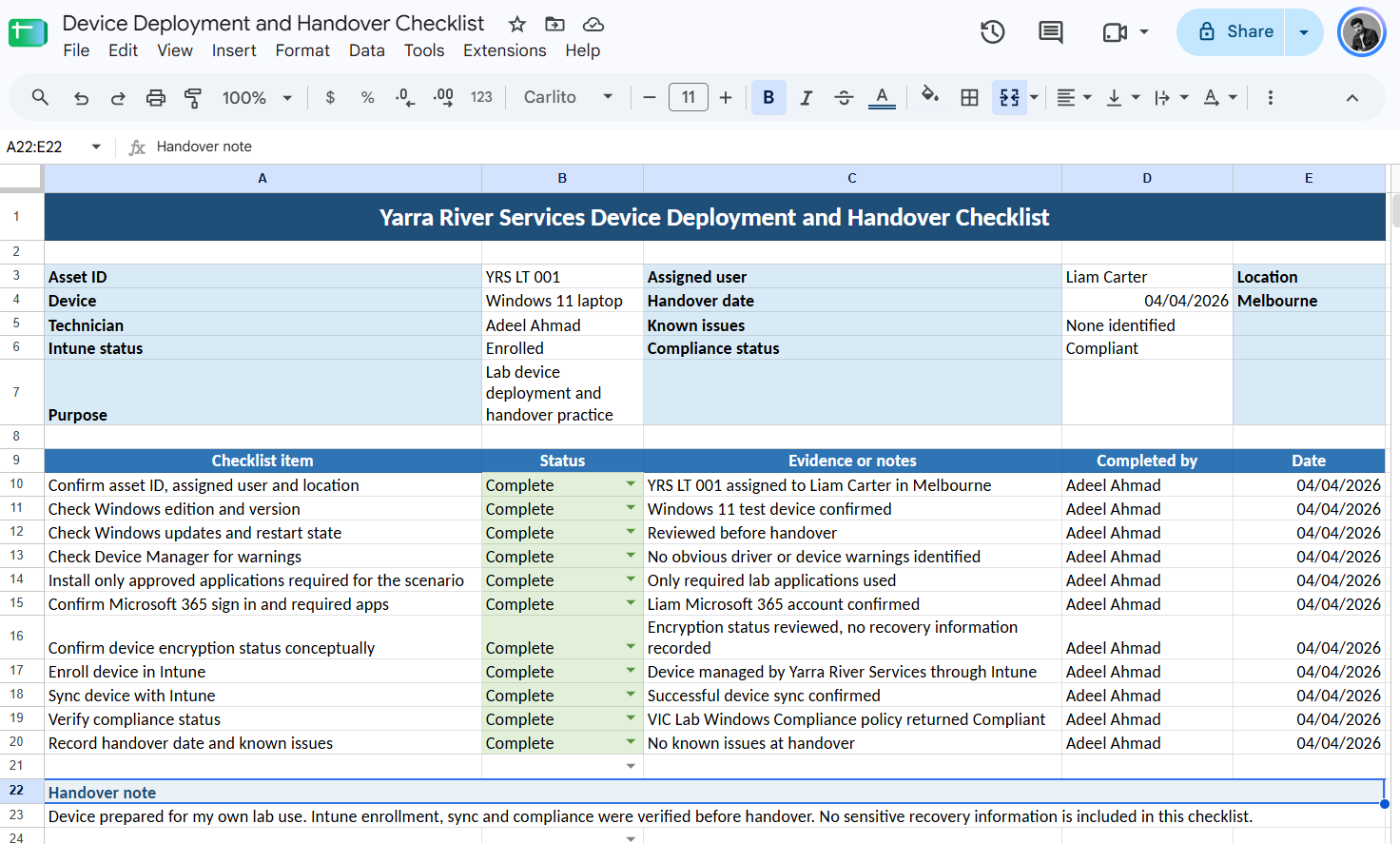
I created a device deployment and handover checklist to document the checks completed before releasing an endpoint to a user.
Device preparation checks
Confirm asset ID and assigned user
Check Windows edition and version
Review Windows updates
Check Device Manager
Confirm required applications
Confirm Microsoft 365 access
Review encryption status
Confirm Intune enrollment
Sync the endpoint
Verify compliance
Record handover and known issues
Device Management Workflow
Prepare user and test scope
Liam Carter was included in the controlled device management scope.
Connect the endpoint
The Microsoft 365 work account was connected to the Windows 11 virtual machine.
Confirm enrollment
The endpoint appeared in Microsoft Intune device inventory.
Assign compliance requirements
The Windows compliance policy was assigned to the dedicated lab group.
Sync and verify
The endpoint successfully synced and returned a compliant policy result.
Document the device
The asset register and deployment checklist were updated to complete the device lifecycle record.
What I Learned
This lab helped me understand the difference between simply opening Microsoft Intune and actually using it to manage an endpoint.
Microsoft Entra ID handles identity and access while Microsoft Intune provides endpoint management, inventory, policy and compliance information.
I also learned that enrollment alone is not enough.
A support technician needs to confirm the endpoint record, check user assignment, sync the device, review policy results and document the work completed.
The asset register and handover checklist also helped connect the technical configuration with normal service desk documentation.
Skills Demonstrated
Microsoft Intune
Windows 11
Device Enrollment
Endpoint Management
Device Inventory
Compliance Policy
Device Sync
Compliance Verification
Asset Management
Device Deployment
Device Handover
Microsoft Entra ID
Support Summary
I enrolled a Windows 11 test endpoint into Microsoft Intune using a fictional Microsoft 365 user.
I confirmed the endpoint appeared in inventory, reviewed its management information, created and assigned a Windows compliance policy, synced the endpoint and verified a compliant result.
I then documented the endpoint in an asset register and completed a device deployment and handover checklist.
The final result was a complete basic endpoint management workflow rather than only viewing the Intune portal.
Lab Disclosure
This case study was completed in my controlled Microsoft Intune test environment.
Yarra River Services and Liam Carter are fictional lab identities.
The Windows endpoint is a virtual machine used only for training.
The screenshots show configuration and verification completed in my own test environment.
Sensitive device identifiers and recovery information are not included in the public portfolio.