Microsoft 365 Shared Mailbox Access Request
Microsoft 365 Support Case
I completed a controlled Microsoft 365 access-request scenario involving
a user who required access to the Melbourne Support shared mailbox.
The exercise covered request validation, mailbox membership, delegated
permissions, permission propagation and end-user access verification.
Support Scenario
Request
Liam Carter required access to the fictional Melbourne Support shared
mailbox as part of his support responsibilities.
For this controlled lab scenario, manager approval was assumed to have
already been provided.
1. Verify Existing Mailbox Access
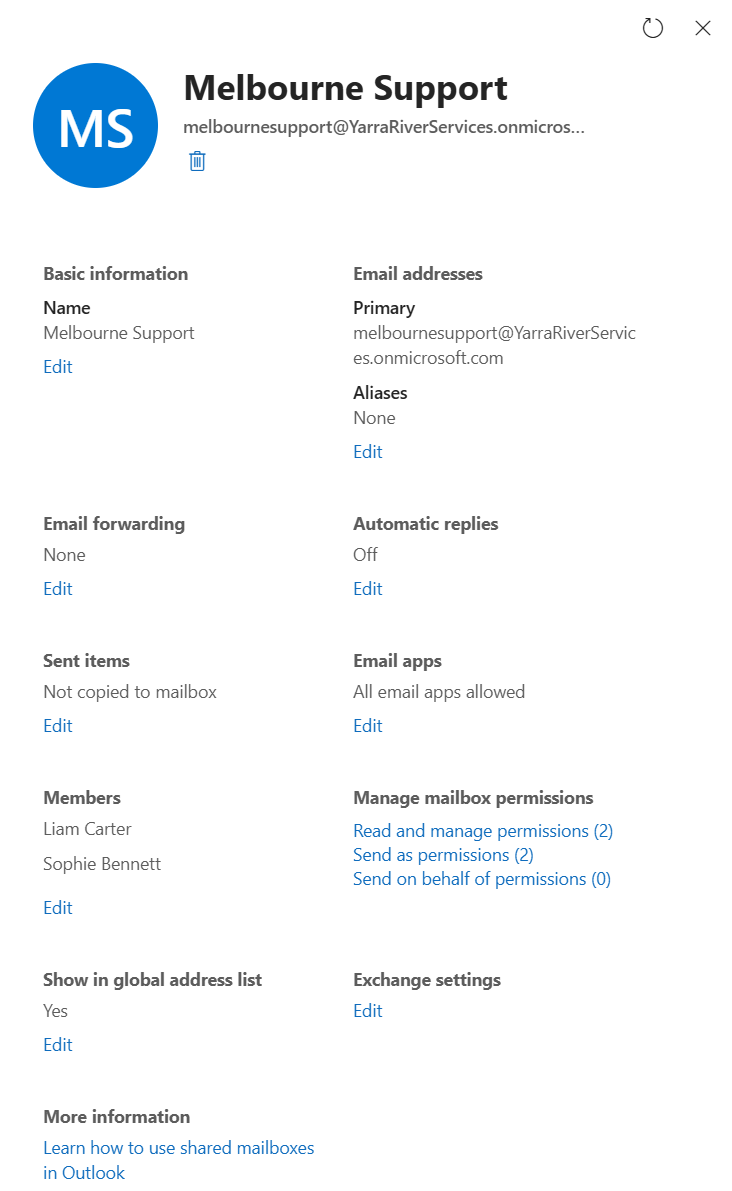
I opened the Melbourne Support shared mailbox in the Microsoft 365 Admin
Center and reviewed its membership and delegated mailbox permissions.
Liam Carter was added as an authorised mailbox member.
The mailbox showed two relevant permissions.
- Read and manage for opening and managing mailbox content
- Send As for sending messages as Melbourne Support
Access principle
The user receives access through their own Microsoft 365 account.
The shared mailbox does not require employees to share a common password.
2. Allow Permission Propagation
After confirming Liam’s mailbox permissions, I allowed time for the Microsoft
365 changes to propagate before testing the account.
This is important because newly assigned cloud permissions may not appear
immediately in the user’s session.
Avoid unnecessary repeated changes.
3. Test Access in Outlook
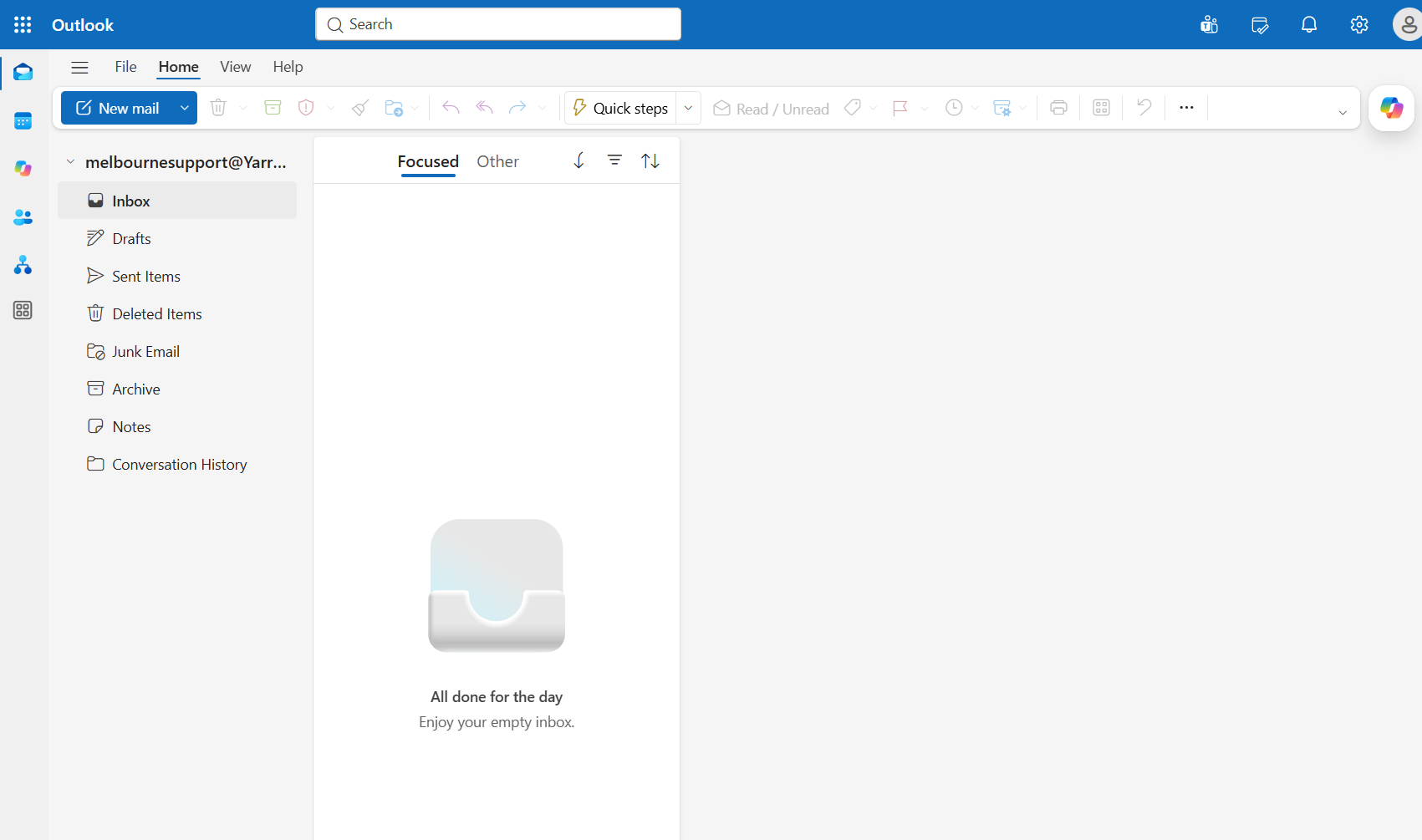
I signed into Outlook on the web using Liam Carter’s licensed Microsoft 365
account.
I then used Outlook’s Open another mailbox function to locate
the Melbourne Support mailbox.
The mailbox did not initially appear when searching by display name.
I therefore entered the full shared mailbox email address.
The mailbox then opened successfully.
Result
Liam Carter successfully accessed the Melbourne Support shared mailbox
using his own Microsoft 365 identity.
The assigned mailbox membership and permissions were therefore verified
from both the administrative and end-user sides.
Troubleshooting Decision
When the mailbox did not initially appear by display-name search, I did not
remove and recreate the permissions.
I first considered permission propagation and then tested the mailbox using
its complete email address.
That test succeeded.
This avoided making unnecessary configuration changes to a working permission
assignment.
Work Note
Request:
Approved access requested for Liam Carter to the Melbourne Support shared mailbox.
Verification:
Confirmed Liam Carter was assigned mailbox membership with Read and manage
and Send As permissions.
Action:
Allowed permission propagation and tested access through Outlook on the web.
Result:
Melbourne Support opened successfully using Liam’s authorised Microsoft 365 account.
Skills Demonstrated
Exchange Online
Shared Mailboxes
Mailbox Permissions
Send As
Access Requests
Outlook Web
Access Verification
Troubleshooting
Lab Disclosure
This case study was completed in a controlled Microsoft 365 test tenant.
Yarra River Services, Liam Carter and Melbourne Support are fictional
lab identities and resources.
The screenshots show actual configuration and verification completed
in my test environment.