Microsoft 365 and Entra ID Administration & Sign-In Troubleshooting
Case Study 03
I built and administered a Microsoft 365 and Microsoft Entra ID test environment
for the fictional Yarra River Services organisation.
The lab covered cloud user administration, Microsoft 365 licensing, account sign-in
state, group membership, shared mailbox access, Entra sign-in investigation,
authentication troubleshooting, administrative roles and a safely scoped
Conditional Access policy.
Support Environment
- Microsoft 365 Business Premium test tenant
- Microsoft 365 Admin Center
- Microsoft Entra Admin Center
- Microsoft Entra ID Premium P1
- Exchange Online shared mailbox
- Microsoft 365 groups
- Conditional Access
- Fictional Yarra River Services environment
1. Creating Cloud Users and Managing Licences
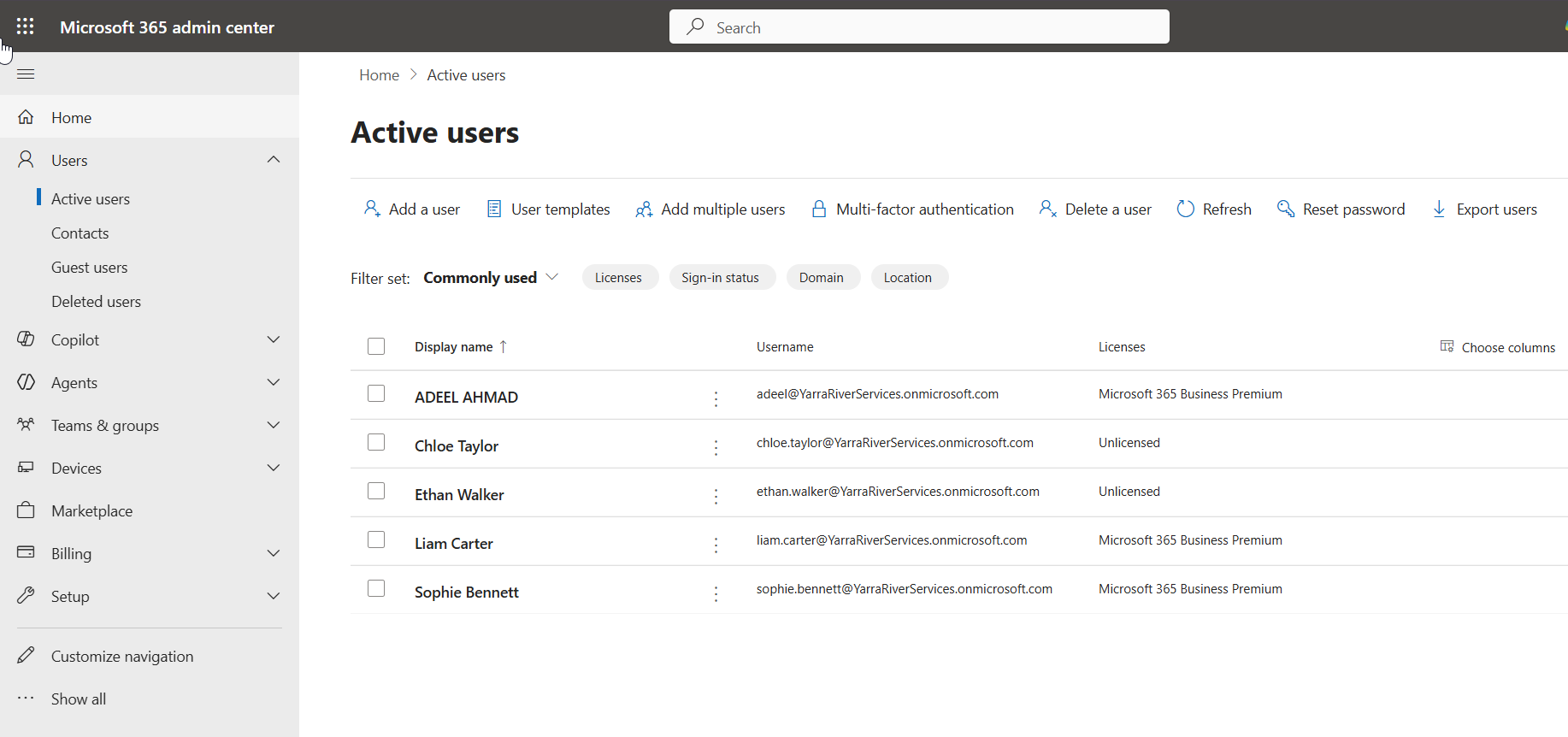
I created a set of fictional cloud users in Microsoft 365 using the same
employee identities used throughout the support lab.
Licences were assigned only where required for testing.
Sophie Bennett and Liam Carter were assigned Microsoft 365 Business Premium,
while Chloe Taylor and Ethan Walker remained unlicensed for exercises that
did not require paid Microsoft 365 services.
Key concept
A cloud identity and a Microsoft 365 licence are not the same thing.
A user can exist in Microsoft Entra ID without consuming a Microsoft 365 licence.
2. Managing Sign-In State
I practised common Level 1 account-management actions on Sophie Bennett’s
Microsoft 365 account, including password administration and sign-in state.
I temporarily blocked Sophie’s cloud sign-in, confirmed the account state
in the Microsoft 365 Admin Center and then restored access.
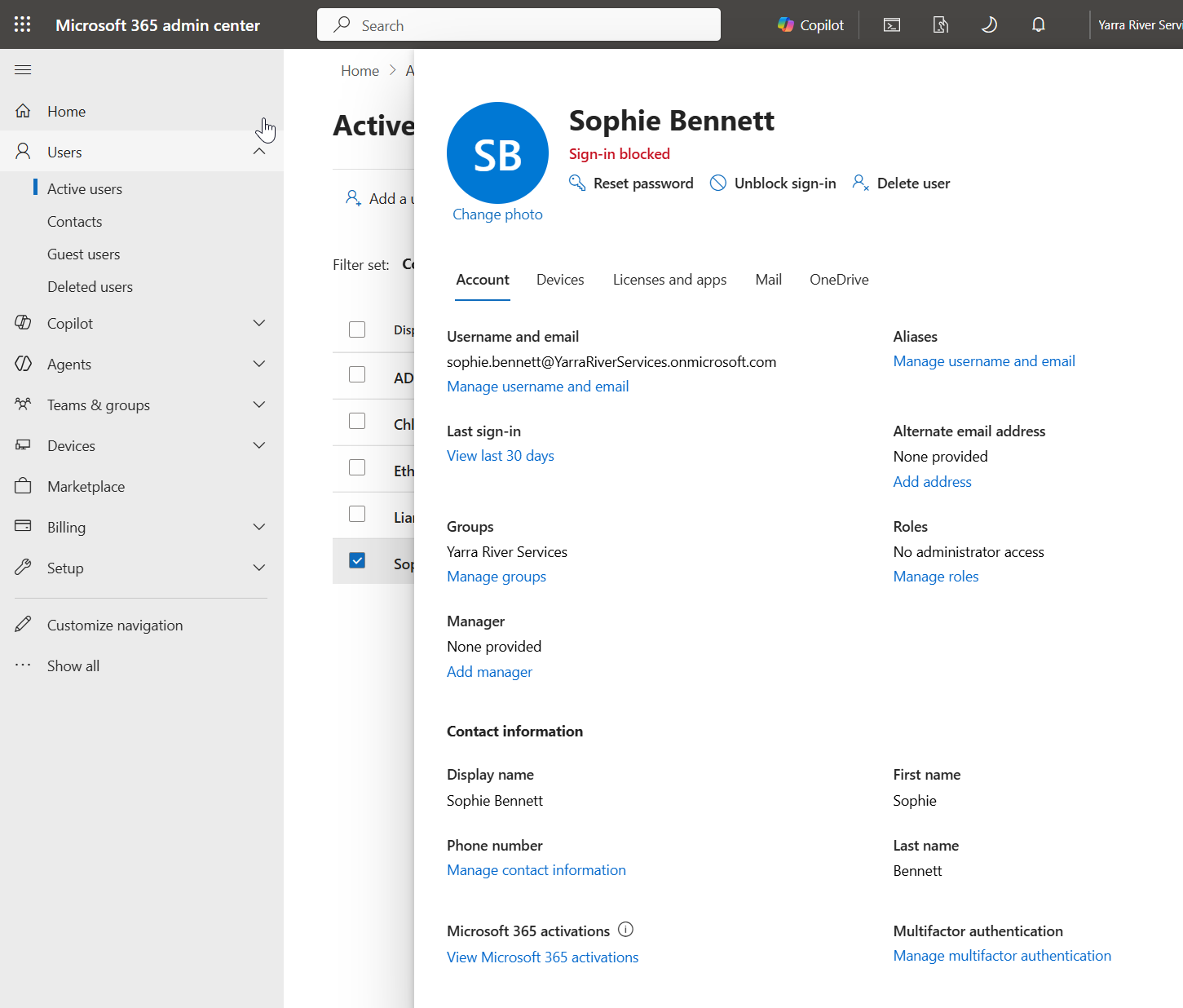
This reinforced the difference between resetting credentials and controlling
whether a cloud identity is permitted to sign in.
3. Microsoft 365 Group Membership
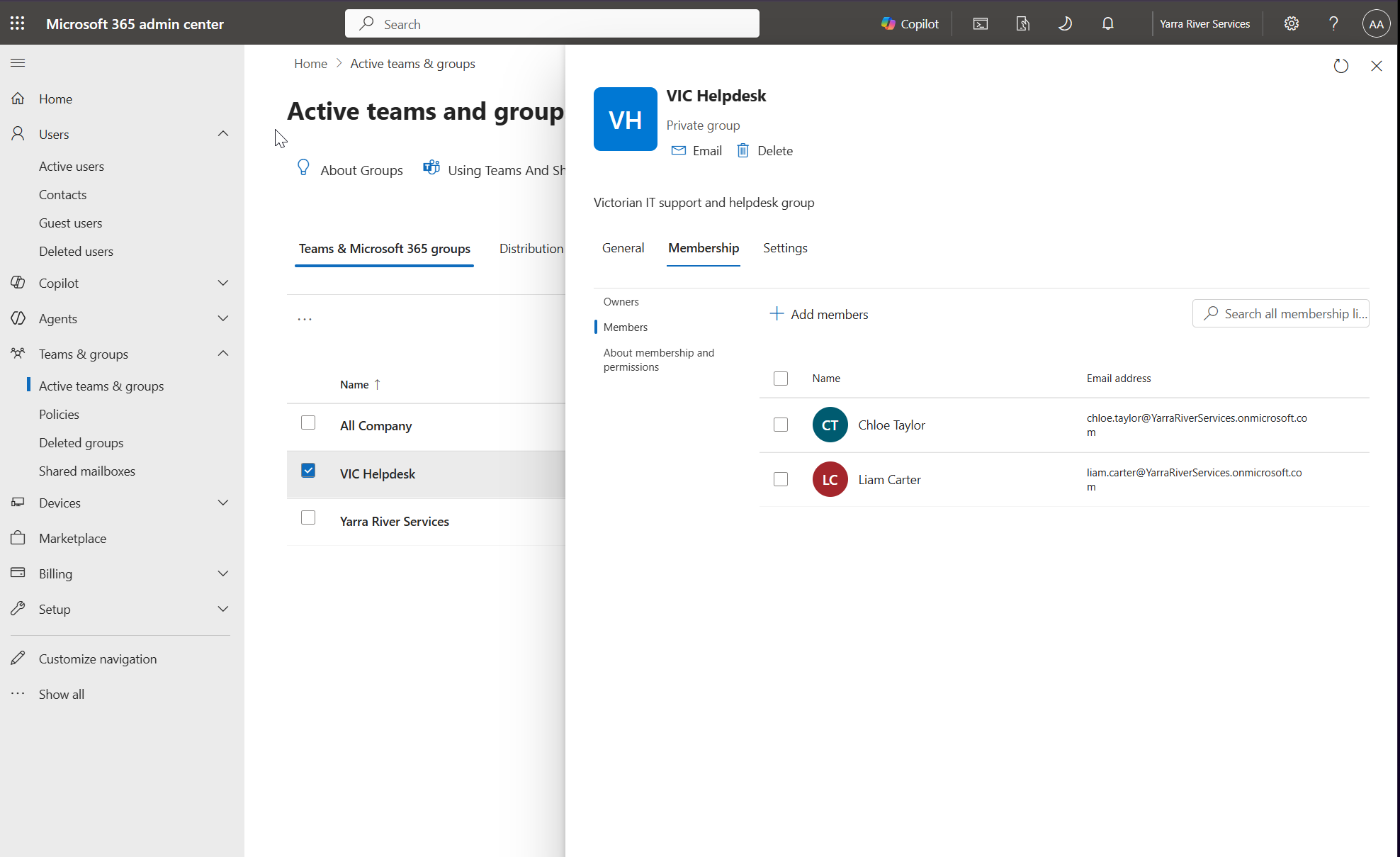
I created a private Microsoft 365 group called
VIC Helpdesk.
Chloe Taylor and Liam Carter were added as members.
This demonstrated the same group-based administration principle used in
the Active Directory lab, applied to Microsoft’s cloud environment.
4. Configuring a Shared Support Mailbox
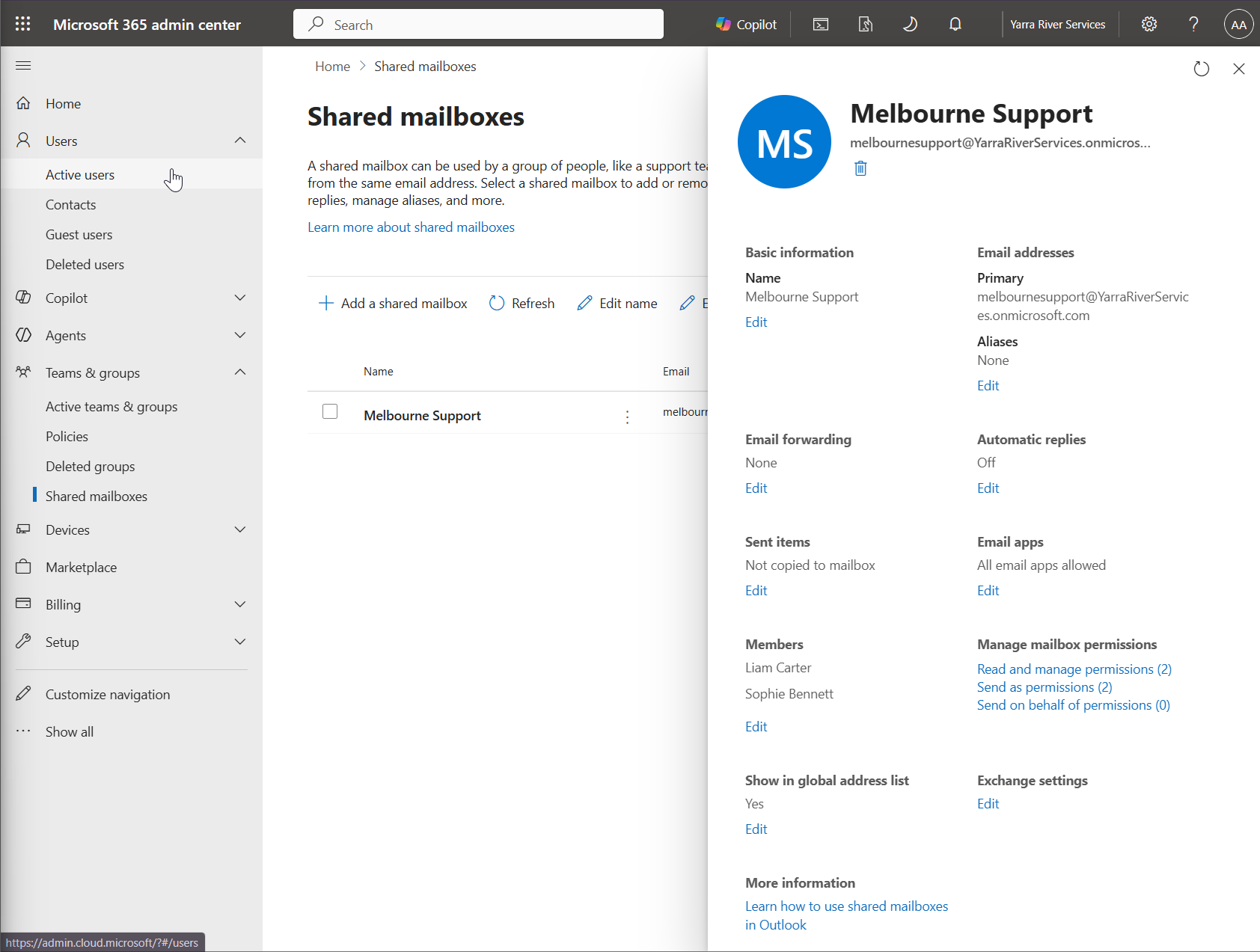
I created a shared mailbox called
Melbourne Support
and added Sophie Bennett and Liam Carter.
The mailbox was configured with
Read and manage
and
Send As
permissions for the two users.
Understanding the Mailbox Permissions
Read and manage allows an authorised user to open the shared
mailbox and work with its contents.
Send As allows a user to send mail that appears to come
directly from Melbourne Support.
This provides a more manageable business support model than multiple employees
sharing a single username and password.
Shared mailbox model
Individual user account → Shared mailbox membership → Business mailbox access
5. Microsoft Entra ID Administration
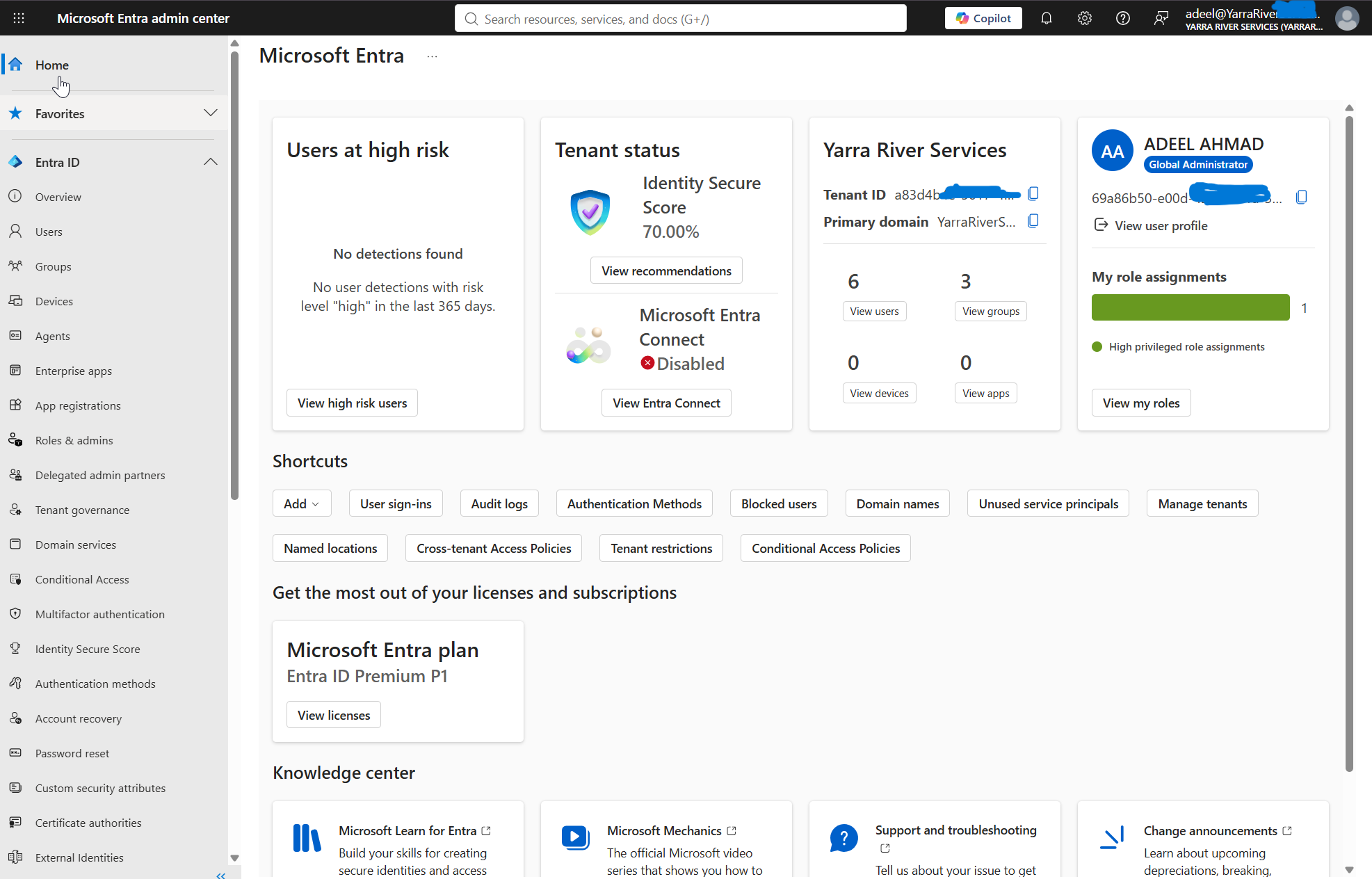
I then moved from Microsoft 365 administration into Microsoft Entra ID
to work with cloud identity, authentication and access-management features.
Key distinction
Microsoft Entra ID provides the cloud identity and access layer.
Microsoft 365 services such as Outlook, Teams and OneDrive use those identities.
The on-premises Active Directory environment in this lab remained separate
because Microsoft Entra Connect was not configured.
6. Investigating a Microsoft 365 Sign-In Failure
Support Scenario
Sophie Bennett reported that she could not sign into Microsoft 365.
A controlled failed sign-in was generated in the lab so that the issue
could be investigated using actual Entra sign-in data.
I opened Sophie’s interactive sign-in logs and confirmed that Microsoft Entra
had recorded failed authentication attempts.
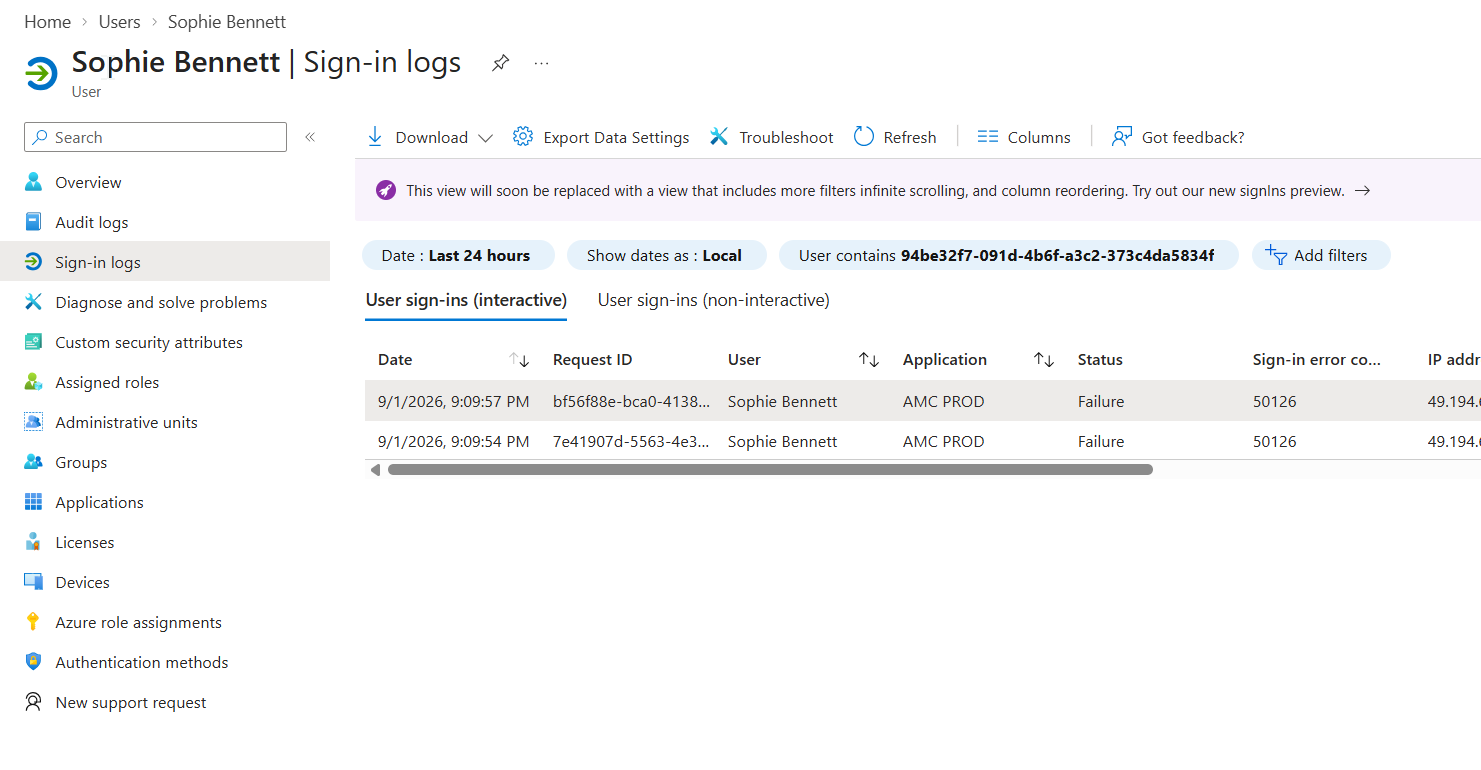
The sign-in log showed
Failure
with error code
50126.
7. Identifying the Failure Reason
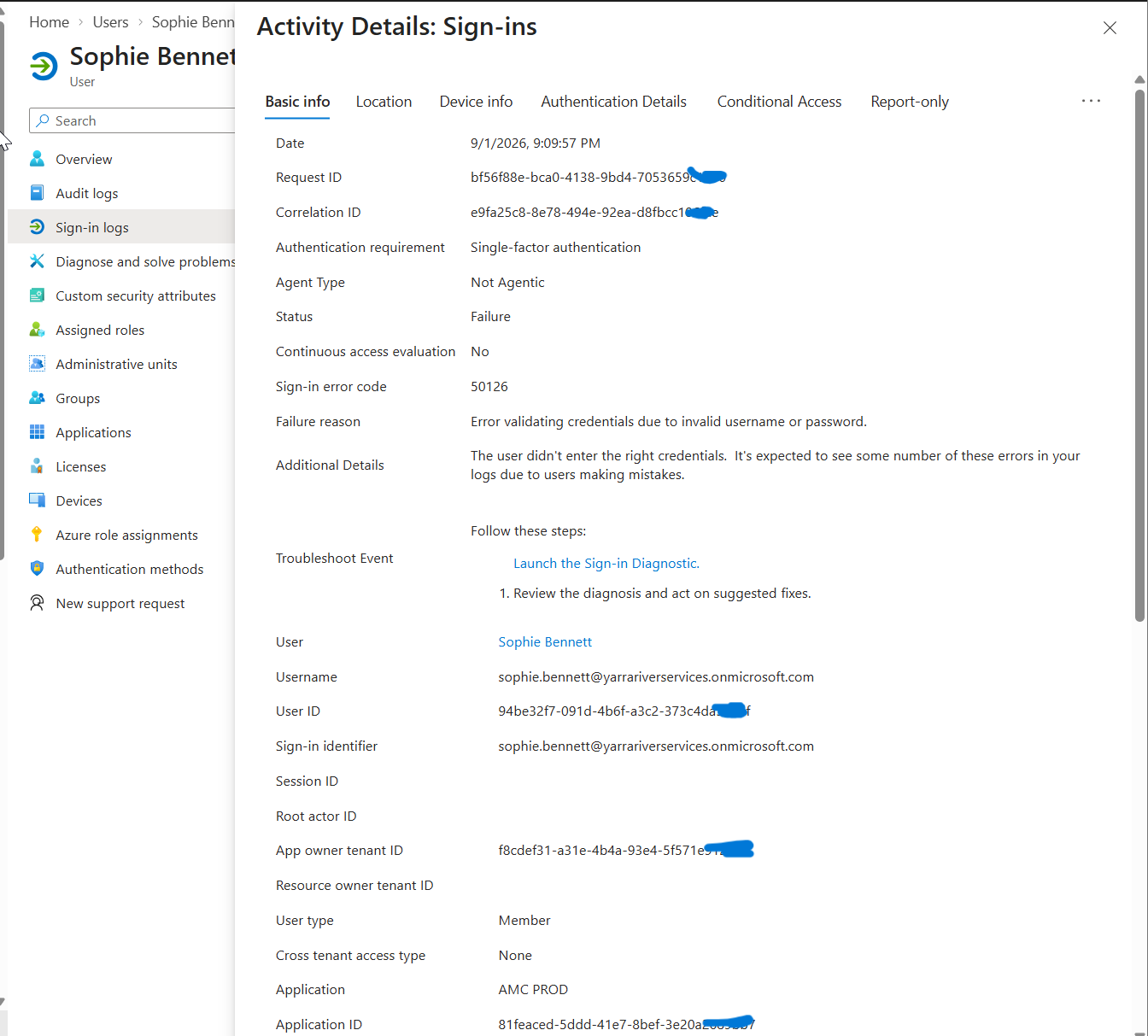
I opened the failed event rather than making unrelated configuration changes.
The event details identified the failure reason as an error validating
credentials due to an invalid username or password.
Troubleshooting finding
The evidence pointed to credential validation rather than immediately
suggesting a licence, device, mailbox or Conditional Access problem.
8. Reviewing Authentication Details
I continued the investigation by opening the
Authentication Details
tab for the failed event.
The authentication step showed
Password in the cloud
with a failed result.
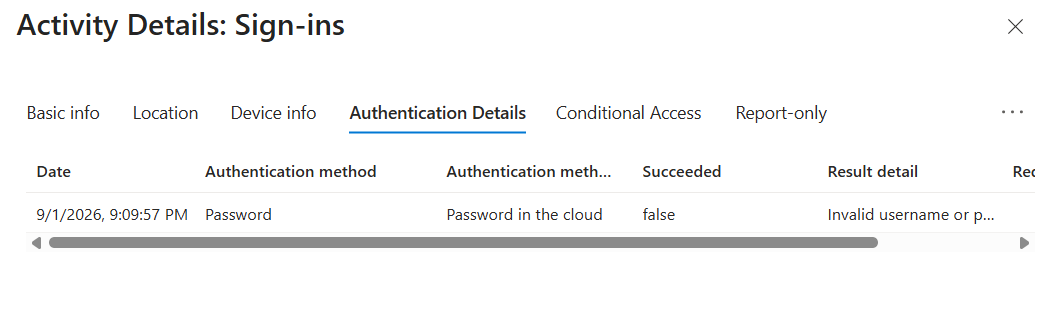
This provided additional evidence that the failed sign-in occurred during
password authentication.
Troubleshooting Sequence
User reports sign-in failure
→ Check Entra sign-in logs
→ Confirm failed event
→ Review error code
→ Read failure reason
→ Inspect authentication details
→ Apply only the fix supported by evidence
This approach avoids changing MFA, licences, device configuration or access
policies when the available evidence points somewhere else.
9. Reviewing the Helpdesk Administrator Role
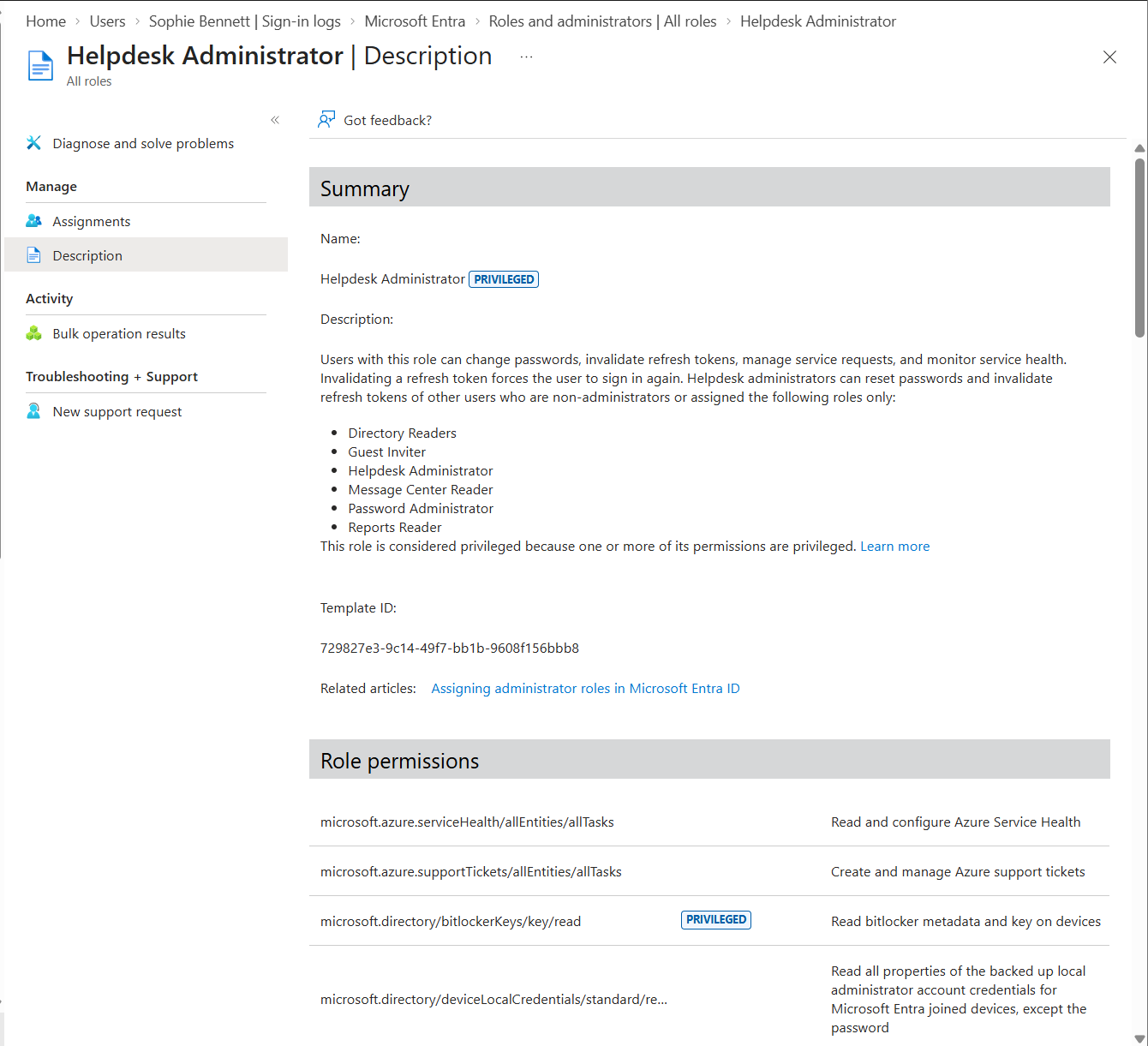
I reviewed the built-in
Helpdesk Administrator
role in Microsoft Entra ID.
The role includes support capabilities such as password administration,
refresh-token invalidation, service requests and service-health monitoring,
within the role’s defined scope.
Least privilege
A support technician should not automatically receive Global Administrator
access simply because they need to perform routine support tasks.
Role-based administration allows organisations to provide the permissions
required for a role without unnecessarily granting broader administrative control.
10. Conditional Access Exposure
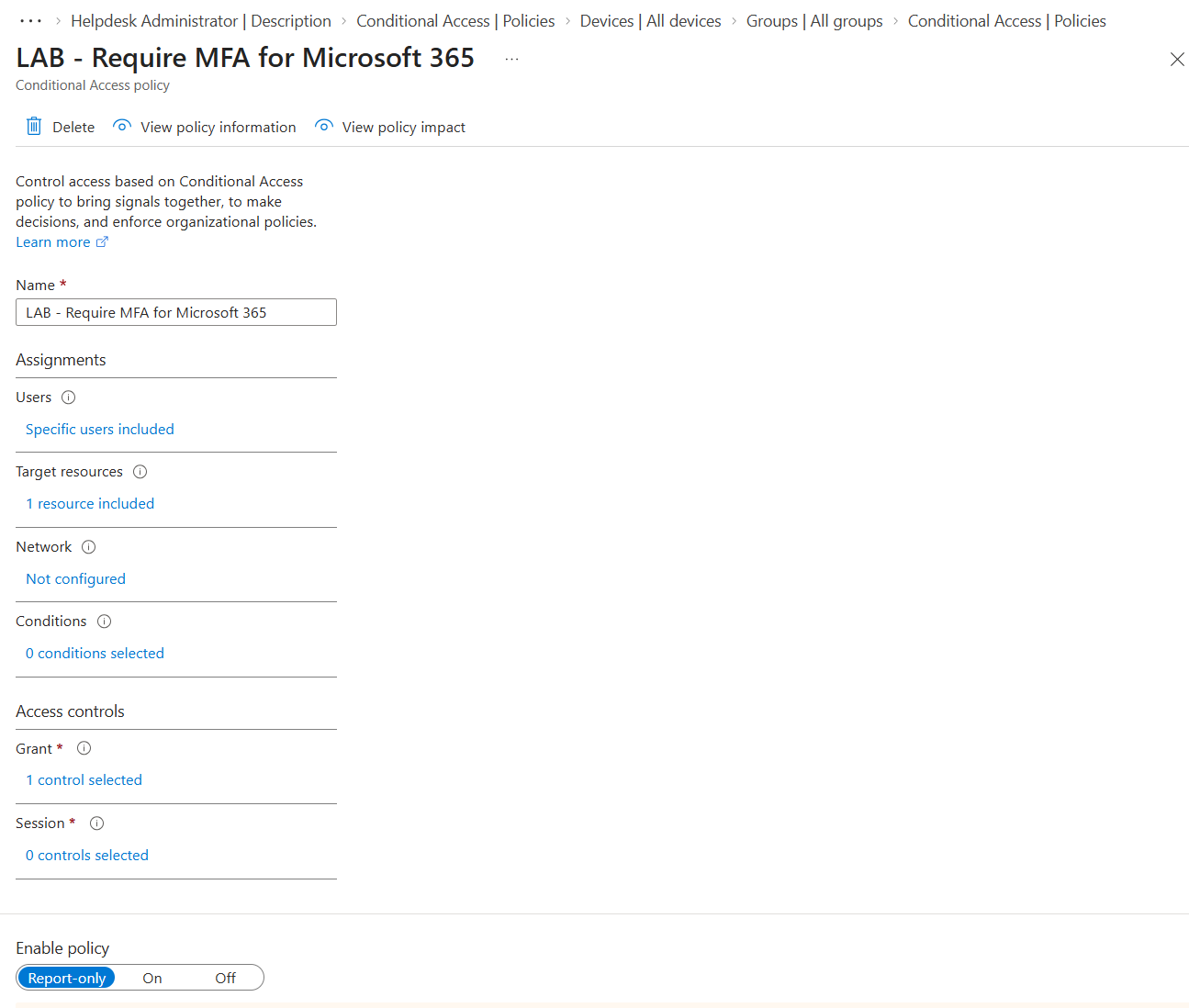
I created a Conditional Access lab policy called
LAB – Require MFA for Microsoft 365.
The policy was scoped to a dedicated test group and a specific Microsoft 365
resource rather than being targeted tenant-wide.
The access control was configured to require multifactor authentication.
11. Using Report-Only Mode Safely
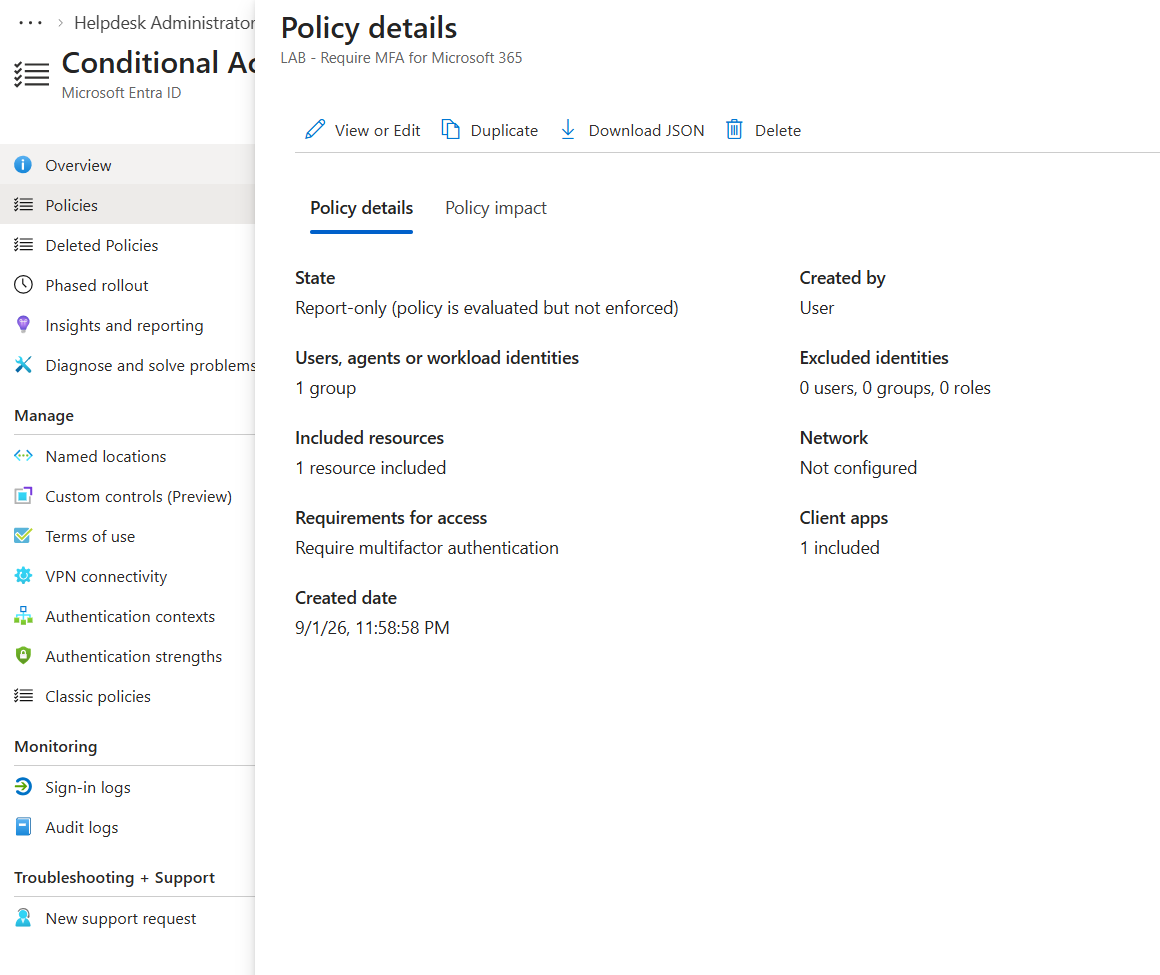
The Conditional Access policy was kept in
Report-only
mode.
This allowed the policy logic to be evaluated without enforcing the access
control against users.
Security decision
The lab policy was deliberately scoped and left in Report-only mode
instead of enabling an untested tenant-wide access policy.
What I Learned
This lab connected Microsoft 365 administration with Microsoft Entra identity
troubleshooting.
Microsoft 365 Admin Center
Users, licences, Microsoft 365 groups, mailboxes and service administration.
Microsoft Entra ID
Cloud identity, authentication, sign-in investigation, roles and access controls.
Sign-in logs
Evidence showing when authentication was attempted, whether it succeeded
and why a failure occurred.
Conditional Access
Policy logic that evaluates identity, resource and other signals before
applying an access requirement.
Skills Demonstrated
Microsoft Entra ID
Cloud Identity
User Administration
Licence Management
Password Reset
Sign-In Management
Microsoft 365 Groups
Shared Mailboxes
Send As
Sign-In Logs
Authentication Troubleshooting
RBAC
Least Privilege
Conditional Access
MFA
Support Summary
This exercise demonstrated an end-to-end junior cloud-support workflow.
I created and licensed Microsoft 365 users, managed account sign-in state,
configured group membership, provisioned a shared support mailbox, investigated
a real controlled authentication failure using Entra sign-in logs, reviewed
role-based administrative access and configured a safely scoped Conditional
Access MFA policy in Report-only mode.
The main troubleshooting lesson was to use identity evidence before making
configuration changes.
Lab Disclosure
This case study was completed in a controlled Microsoft 365 and Microsoft
Entra test tenant.
Yarra River Services and all employee identities shown are fictional.
The screenshots show actual configuration and troubleshooting performed
in my lab environment.
This was not production administration.